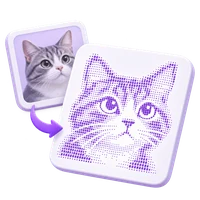
Turn a picture into character art. Explore ASCII lettering or Braille dots, adjust the detail and tone, and keep the result as text or an image.
A picture, made of characters
Choose an image, drop it here or paste one from your clipboard.
PNG, JPG, WebP or GIF · Up to 20 MB. Images are processed in your browser. Animated images use one still frame.
How to Convert an Image to ASCII Art
01
Open an image
Choose a PNG, JPG, WebP or GIF image, drop a file onto the tool, or paste an image from your clipboard. You can also try the provided sample.
02
Choose letters or dots
Start with Dot art and dithering for Unicode Braille patterns, or select ASCII for character shading. Compare the source and converted preview to see which suits your picture.
03
Refine the detail and tone
Use Detail to set the character width, then adjust Brightness and Contrast. Try dithering in either mode; choose a Character style for ASCII or tune Dot threshold for dot art.
04
Copy, download or save
Use Copy text, or choose TXT or PNG and Download the result. Select Save design and give it a name to reopen its working image and settings from Saved.
Convert an Image into ASCII or Braille Dot Art
Recreate the light and dark areas of a picture with letters, symbols or Unicode Braille dots. Compare the two modes, refine the detail and tone, then copy the character art or keep a rendered image.
Open an image, turn its light and dark areas into characters, then copy or download the art.
Open a local image or try the sample, then convert the whole picture without uploading it for processing.
Understand supported images and preparation
Choose PNG, JPG, WebP or GIF. Images must be no larger than 20 MB, 40 megapixels or 32,768 pixels on either side. The browser must be able to decode the file. Large or complex animations have additional frame limits, and conversion uses a still frame rather than creating animated text art.
The tool creates a working image with a maximum side of 1,280 pixels before conversion. This keeps local processing manageable; it is not a copy of the original file at full resolution. Rotate image and Flip image horizontally can change its orientation before conversion. Simple subjects, clear silhouettes and strong light-dark contrast are often easier to recognize at text-art sizes.
Transparent pixels are composited onto white before their brightness is measured. If a transparent design loses detail, try adjusting contrast or using an image prepared against a suitable background.
Compare ASCII and dot art
Choose character shading or a finer pattern of Unicode Braille dots.
Choose a character style for the image
ASCII art maps image brightness to a character ramp. Classic, Detailed and Minimal use different sets of text marks; Blocks uses Unicode shading and block characters. Darker areas normally receive denser characters, while lighter areas use lighter marks or spaces.
Dot art uses Unicode Braille patterns, with up to eight dots in each character cell. The dots represent the picture visually. They are not a translation into readable Braille language and do not transcribe words that appear in the image.
Balance detail and output size
Set the requested width while keeping the whole image inside a bounded character grid.
Understand columns, rows and proportions
Detail sets the requested width from 30 to 200 character columns and starts at 100. More columns can preserve smaller features, but they also produce more text and may need more room in the destination. Preview size changes only the on-screen display, not the generated text or PNG dimensions.
The converter uses a fixed character-shape ratio to approximate the image proportions. Output is capped at 240 rows and 48,000 character cells. Tall images can use fewer columns than requested, even fewer than 30, to stay within these bounds; the tool reports the adjustment.
The whole image is resampled rather than cropped. Extremely narrow or wide images can only approximate their proportions on a character grid. Check the result at the size and font you plan to use.
Bring out the light and dark areas
Adjust brightness, contrast and inversion, try dithering in either mode, and tune the threshold for dot art.
Fine-tune the character pattern
Brightness shifts the image toward lighter or darker tones. Contrast increases or reduces the difference between them. Invert reverses light and dark before characters or dots are selected. Try small adjustments and compare the result with the source.
In Dot art, threshold determines which adjusted pixels become dots. Dither for smoother shading works in both modes: it distributes character density or dots to suggest intermediate tones. It can help with gradients, though it may add texture to a simple logo or silhouette. These controls change the generated pattern.
Paper, Accent and Night offer color presets, and Ink and Paper let you choose your own preview and PNG colors. They do not add color information to copied text or a TXT file; the app where you paste text controls its font and colors.
Choose editable text or a rendered image
Copy characters or download TXT for text use, and choose PNG to keep the rendered appearance.
Preserve spaces, dots and visual layout
Copy and TXT keep the generated characters, spaces and line breaks. Dot art contains Unicode Braille characters, including a blank Braille cell where no dots are set. Keep these blank characters and use a compatible monospace font so the picture stays aligned.
PNG saves the rendered character art using the selected preview colors. It is an image of the result, while TXT remains a text file. If automatic clipboard copying is unavailable, use the prepared text field to select and copy the output manually.
Keep an editable design locally
Explicitly save the working image and settings to continue editing in this browser.
Understand saved designs and privacy
You can keep up to 12 named designs. A saved design includes the resized PNG working image, conversion settings and preview colors. Open a design from Saved to adjust the art again. Saving an already opened design updates that entry; loading a new image starts a new design. The original uploaded file is not retained as part of the design.
Saving is explicit; opening an image or changing a control does not create an automatic saved draft. Saved designs belong to this browser and website address, are not synced to an account, and are removed when browser site data is cleared. Other people using the same browser profile may be able to open them.
If browser storage is unavailable, designs can remain available only for the current visit. Keep the original image separately if you may need its full resolution again, and download TXT or PNG copies of results you want to keep.
Your image, output and saved designs
Images are decoded, resized and converted in your browser. The tool does not upload them for conversion. Copy and TXT produce character art; PNG produces a rendered image of that art.
Only explicitly saved designs keep a normalized working image and settings in browser storage. Keep your original file separately. Use ASCII Art Generator for drawing and editing a character canvas, or ASCII Banner Generator to turn words into large text headings.
FAQ
Good to know.
A few answers before you get started.
What does Image to ASCII & Dot Art do?
It recreates a picture using text characters or Unicode Braille dot patterns. You can adjust the detail and tone, copy text, download TXT or PNG, and explicitly save an editable design locally. It makes visual character art; words inside the image are not transcribed.
Which image formats and sizes can I use?
Use a complete PNG, JPG, WebP or GIF image up to 20 MB, 40 megapixels and 32,768 pixels on either side. The browser must support decoding it. Animations have additional frame limits and are converted as a still image. A working copy is resized to a maximum side of 1,280 pixels.
Is Dot art a translation into Braille?
No. Dot art uses the eight-dot patterns of Unicode Braille characters as a visual grid for the picture. It does not translate written language into Braille. The Blocks ramp also uses Unicode characters, while other ASCII ramps use ordinary text marks.
Why is the result narrower than the width I selected?
The requested width is limited by the image proportions and the output caps of 240 rows and 48,000 cells. A tall image may use fewer columns, even below the requested minimum of 30, to keep the whole image inside those bounds. Extreme proportions are approximated rather than cropped.
How are transparent images and light areas handled?
Transparency is placed over white before brightness is measured. Dark areas normally create denser characters or dots. Adjust brightness, contrast and Invert to change this mapping. Dithering is available in both modes; Dot art also offers a dot threshold. Preview colors affect PNG appearance, not the characters copied as text.
Why does copied text look different in another app?
Character art relies on monospace widths, Unicode glyph support, blank characters and unchanged line breaks. Wrapping, space trimming or a different font can distort it. TXT preserves the text; PNG preserves the rendered artwork as an image.
What is kept when I save a design?
An explicit save keeps a named design with the normalized PNG working image, conversion settings and preview colors, so it can be edited again. Up to 12 designs can be stored locally. The original uploaded file is not retained, designs are not synced, and clearing browser site data removes them.
Is my image uploaded or saved automatically?
No. Conversion happens in your browser, and loading an image does not create an automatic saved draft. Only an explicit save keeps a working image and settings in browser storage. Copy and Download let you choose where to use or keep the result.