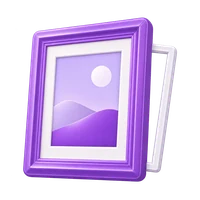
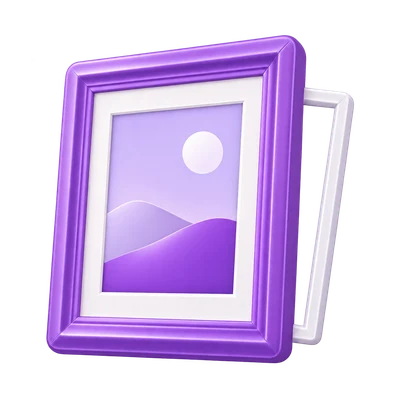
Raised Frame Photo Frame

Make this design your own. Add a photo, fine-tune the fit, and download your creation.

01 Your photos
On your device
02 Your creation
Creating your preview...
Preview uses a sample. Choose a photo to make it yours.

Download at the available resolution, up to 2,048 pixels on the longest side.

Explore more frames

Crop your photo

Drag to select an area, or enter its position and size below.

Add the Raised Frame Frame to Your Photo

The raised frame photo frame adds a clean and visually appealing border to your images, helping them stand out with a polished look. Whether you’re editing a personal photo or creating content for sharing, this frame enhances your image without changing its original character.

With this tool, you can apply the raised frame frame online in just a few steps. Simply upload your photo, preview how the frame looks, and generate a finished image. No design experience or software installation is required.

Once applied, your framed photo can be downloaded and used on social media, in digital albums, presentations, or creative projects.

How to Add the Raised Frame Photo Frame?

  • Choose a photo from your device, or try one of the sample photos.
  • Crop, rotate, or flip the source photo if needed.
  • Preview the result and adjust your photo placement.
  • Download the finished image and share it wherever you like.

Why Use the Raised Frame Photo Frame?

  • Add a decorative border or layout to your photo.
  • Preview your changes before downloading the final image.
  • Use JPG, PNG, and WebP photos in your browser.
  • No signup or software installation is required.
How to Add a Photo Frame?

  1. Choose a frame

    Open a border, vignette, polaroid or other frame style.

  2. Load your picture

    Choose a PNG, JPG or WebP photo from your device.

  3. Check the edges

    Adjust the crop and orientation so important details remain visible.

  4. Save the framed photo

    Choose a format and download the finished image.

BlogHow to put a photo in a decorative frameRead the guide

Finish a photo with a frame that fits

A frame gives a photograph a defined edge or a different presentation. Choose a simple border, a soft fade, a raised finish or a polaroid-style layout, then preview it with your own picture.

These frames work with the photo you provide. Use them for a digital album, a greeting, a presentation or an image you want to share as a single finished picture.

A finished frame and the photograph export together as one image.
QUICK TUTORIALHow to frame a photo?Finish your photo with a decorative frame. Review the frame around the sample photo.English narration · English captions · 16 secondsWatch tutorial

How to frame a photo?

Choose a border or a raised finish

Try Border Frame, Groove, Bump, Dent, Bevel Smooth, Raised Frame, Thick Black or Wooden.

Match the finish to the photograph

A plain border separates the picture from the page around it. Raised and recessed styles use highlights and shadows to suggest depth; Wooden adds a warm frame appearance.

Look at the full composition as well as the outer edge. A stronger border can suit a simple subject, while a busy picture may benefit from a quieter frame.

Soften the image boundary

Circle, Fading Vignette and Fading Rounded Corners change the silhouette or soften the edge.

Keep transparent edges in the download

A circular or fading treatment can remove or soften pixels near the outside of the photo. Keep faces and other essential details away from the edge when choosing one of these styles.

Transparent areas let the framed picture sit over another background. Export as PNG or WebP to preserve them; JPG cannot store transparency.

Try a print-inspired presentation

Padded, Upright Polaroid and Rotated Polaroid add a more relaxed photographic layout.

Allow room for the finished frame

A polaroid-style presentation adds a border around the photograph, while a rotated design changes the overall outline. Padded provides extra visual space around the image.

The finished dimensions may differ from the source because the frame can add space. The preview is scaled for editing, while the download uses the available resolution within the output limit.

Protect the important details

Crop, rotate and flip your source while watching how it sits inside the frame.

Check the photo before saving

If the frame covers a face, signature or other detail, try a different crop or a style with a less prominent edge. A picture with some space around its subject is easier to frame.

Rotation corrects the orientation. Flipping mirrors everything in the photograph, including text, so inspect lettering before downloading.

Refine without losing your starting point

Use Undo and Redo to compare adjustments during the editing session.

Review changes before downloading

Undo steps back through your changes; Redo restores an adjustment you just undid. This makes it easier to compare a crop or a new position without repeatedly loading the original.

Inspect faces, lettering and important details in the final preview. A design can hide part of a photograph even when the entire source file was loaded successfully.

The original file on your device stays unchanged. Session history is an editing aid, so download any result you want to keep before leaving the page.

To reuse your photos on another design page, enable Reuse my photos for 12 hours. This optional browser storage remembers the source photos, not the editing adjustments. Wait for the saved confirmation before reloading or closing the tab. Expired photos are cleared when you return. Clear my photos removes the stored photos and returns the editor to its sample.

Save the picture in a useful format

Choose PNG, JPG or WebP after checking the finished preview.

Pick a format for your next step

PNG is a useful choice for crisp edges and transparent areas. JPG suits many photographs but cannot keep transparency. WebP can also preserve transparent pixels in a compact image format.

The preview is limited to 800 pixels on its longest side for responsive editing; its displayed dimensions describe the preview. Downloads use the available photo or template resolution, up to 2,048 pixels on the longest side. A small source image does not gain new photographic detail when it is enlarged.

Download creates a separate finished image. Keep your original photo if you may want to try another design or edit it again.

Files, dimensions and processing

Choose a PNG, JPG or WebP image up to 20 MiB per file. Images with more than 40 million decoded pixels are not accepted. Large accepted images are reduced to a working size of at most 2,048 pixels on their longest side.

Image editing and export run in your browser. Your selected photos are not uploaded for processing. The page still loads its public templates, previews and other website assets normally.

Download the finished picture before leaving the editor. The download is a flattened image, not an editable project, and changes made here do not overwrite the original file on your device.

FAQ

Good to know.

A few answers before you get started.

On your device
How can I add a frame to a photo?

Choose a frame style and load your picture. Review the framed preview, adjust the crop or orientation if needed, and download the finished image.

Which frame styles can I choose?

The main collection includes Circle, Fading Vignette, Border Frame, Groove, Bump, Dent, Bevel Smooth, Fading Rounded Corners, Padded, Rotated Polaroid, Raised Frame, Thick Black, Upright Polaroid and Wooden.

How do I keep the background around a frame transparent?

Choose PNG or WebP when downloading a frame with transparent areas. JPG does not support transparency, so those areas become a solid background.

Why did the dimensions change after adding a frame?

Some styles add a border or rotate the framed picture, increasing the space needed around it. Preview dimensions are scaled for editing; the download uses the available resolution within the 2,048-pixel longest-side limit.

Can I use a framed photo on social media?

Yes. Download the finished image and upload it to the service you use. That service may crop, resize or compress the picture, so check its preview as well.

Does adding a frame require uploading my photo?

No. The frame is applied in your browser, and the photo is not uploaded for image processing.

Language38

EnglishالعربيةFrançaisItalianoDeutschEspañolPortuguêsNederlandsРусскийTürkçe日本語中文हिन्दीBahasa IndonesiaBahasa Melayu한국어Tiếng ViệtไทยPolskiSvenskaУкраїнськаNorskবাংলাΕλληνικάفارسیاردوČeštinaDanskMagyarRomânăSuomiБългарскиFilipinoქართულიSlovenčinaAzərbaycancaעבריתSlovenščina

All tools59

SymbolsFind and copy Unicode symbols for every message.Symbol RecognizerDraw a character to see matching Unicode symbols, learn their names and copy the one you need.Text EmoticonsSay it with expressive faces made from text.Kaomoji MakerMake a little face with a lot of personality. Mix eyes, mouths and decorations, explore moods, and copy your own text emoticons.Copy and Paste FontsGive your words a new style with decorative lettering.Font PreviewerTry your text in different fonts, compare styles and find your favorite. Explore included fonts or enable fonts installed on your device.Text Divider & Border GeneratorCreate decorative dividers and text borders. Adjust the style, length and spacing, then copy or download your text.Aesthetic Bio MakerBuild a personal bio with editable layouts, styled names and emoji accents. Preview its length, then copy, download or save it.Invisible Character GeneratorCopy blank-looking Unicode text, adjust repetitions, inspect pasted characters and preview removal of selected invisible types.Discord Text FormatterFormat Discord messages with Markdown, check an approximate preview, copy the text and save messages in your browser.Discord Timestamp GeneratorCreate Discord timestamps from a date, time and time zone. Preview the display formats and copy ready-to-paste timestamp codes.Discord Channel Name & Server Layout GeneratorStyle channel names and plan a Discord server with editable categories, ready-made layouts and copyable names.Discord Colored Text GeneratorCreate multicolor Discord messages with ANSI text, custom colors, formatting and a live preview.Discord Embed BuilderBuild Discord embed messages with a live preview, editable fields and validated JSON to copy or download.Stylish Name GeneratorCreate decorative names with Unicode fonts and symbols, customize the details, then copy, download or save them in your browser.Word Cloud Art MakerTurn words into colorful shapes with beautiful fonts and palettes. Save your design or download an image.Emoji Photo Mosaic MakerTurn a photo into a mosaic made of emoji tiles. Adjust the detail, choose a collection, and download your artwork.Pixel Art MakerDraw pixel art with colorful palettes, layers, and mirror tools. Start with a little inspiration and export your creation.ASCII Banner GeneratorCreate block, shadow and 3D-style text banners with FIGlet fonts, then copy, download or save the result in your browser.Text to Emoji ArtCreate text art using your favorite emojis.Design TemplatesExplore templates and starting points for cards, quotes, memes, comics and more.Photo MontageExplore creative compositions for your photos.Photo Booth & Photo Strip MakerCapture a few happy moments. Make photo strips with your camera or uploads, playful frames, filters and your own caption.Photo Collage & Scrapbook MakerBring your favorite photos together in beautiful grids and scrapbook layouts, with captions, stickers and little personal touches.Seamless Pattern MakerTurn little motifs into endless patterns. Mix flowers, stars, hearts and your own images with beautiful colors and seamless repeats.Quote MakerTurn quotes and poems into expressive images with editable templates, fonts and backgrounds.Meme GeneratorMake your own memes with editable captions, six layouts, and one or two photos.Comic MakerAdd your own dialogue and captions to editable comic templates.Cover Photo MakerCreate a cover image with editable text, photos, shapes and templates.Draw with EmojiDraw emoji art with brushes, shapes and photo tracing, then download a PNG.Emoji PickerFind emojis, build your message, and copy or save it as an image.Discord Emoji Maker & CompressorCreate custom Discord emojis from your images. Crop, resize and compress files in your browser before downloading.Emoji CombosFind a themed emoji combo, edit the sequence, and lock or shuffle your choices. Copy, download or save a favorite.Emoji TranslatorMatch English words with emoji, choose alternatives or read emoji names, then copy or save your result.Cool LettersDiscover decorative letters for your next idea.Alphanumeric SymbolsBrowse alternative letter and number characters.ASCII Art GeneratorExplore pictures made with letters and characters.Image to ASCII & Dot ArtConvert pictures into ASCII or Braille dot art, adjust the tone and detail, then copy text or download TXT and PNG.3D TextGive your text an expressive dimensional style.Curved Text GeneratorShape text into arcs or circles, adjust fonts and colors, and download a PNG or JPG design.Animated Text GeneratorCreate animated text with eight effects, preview the motion, then download a GIF or PNG and keep an editable project.Write on Animated GIFsAdd your words to an animated GIF.Add Text to ImageAdd words to a photo or personalize a postcard with editable designs.Alt CodesLook up keyboard codes for special characters.Text to ImageStyle text, symbols and emoji as PNG, JPG or WebP images.Signature GeneratorDraw a smooth signature, type a name or clean up handwriting from paper, then download your signature image.Photo EffectsExplore creative filters, effects, and photo frames.Photo FramesFinish your photo with a decorative frame.Profile Picture MakerCreate a photo, initials or emoji avatar with styles and frames.Discord Banner & Server Icon MakerCreate Discord server banners, profile banners and server icons with editable designs and image downloads.Sticker MakerMake photo stickers with captions, colorful outlines and cutout refinements, then download PNG, WebP or JPG.StickersDownload expressive smiley stickers for personal use.Free ClipartSearch by keyword or color and download SVG or PNG artwork.Online KeyboardType with 69 keyboard layouts, then copy or download your text.Handwriting Font MakerDraw your own letters, numbers and punctuation. Preview your handwriting in a phrase and download a personal OTF font.GTA 6 Names & BiosGenerate player names, crew ideas and editable fan bios. Copy a favorite or use it in your matching profile kit.GTA 6 Profile KitCreate matching profile artwork, phone wallpapers and desktop wallpapers with your choice of background, layout, photo or emblem.GTA 6 Logo & Crew Emblem MakerCreate a wordmark or crew emblem with editable lettering, colors and symbols. Download transparent PNG or SVG artwork for your fan identity.GTA 6 Poster MakerMake wanted posters, crew recruitment cards and event flyers with editable details, backgrounds, photos and emblems. Download portrait, square or landscape PNG artwork.