Choose a small set of photos and a template
Open Photo Collage & Scrapbook Maker. The sample provides four photos immediately. To use your own, choose Add photos and select PNG, JPG or still WebP files; this first upload replaces the sample set. You can also drop files onto the preview.
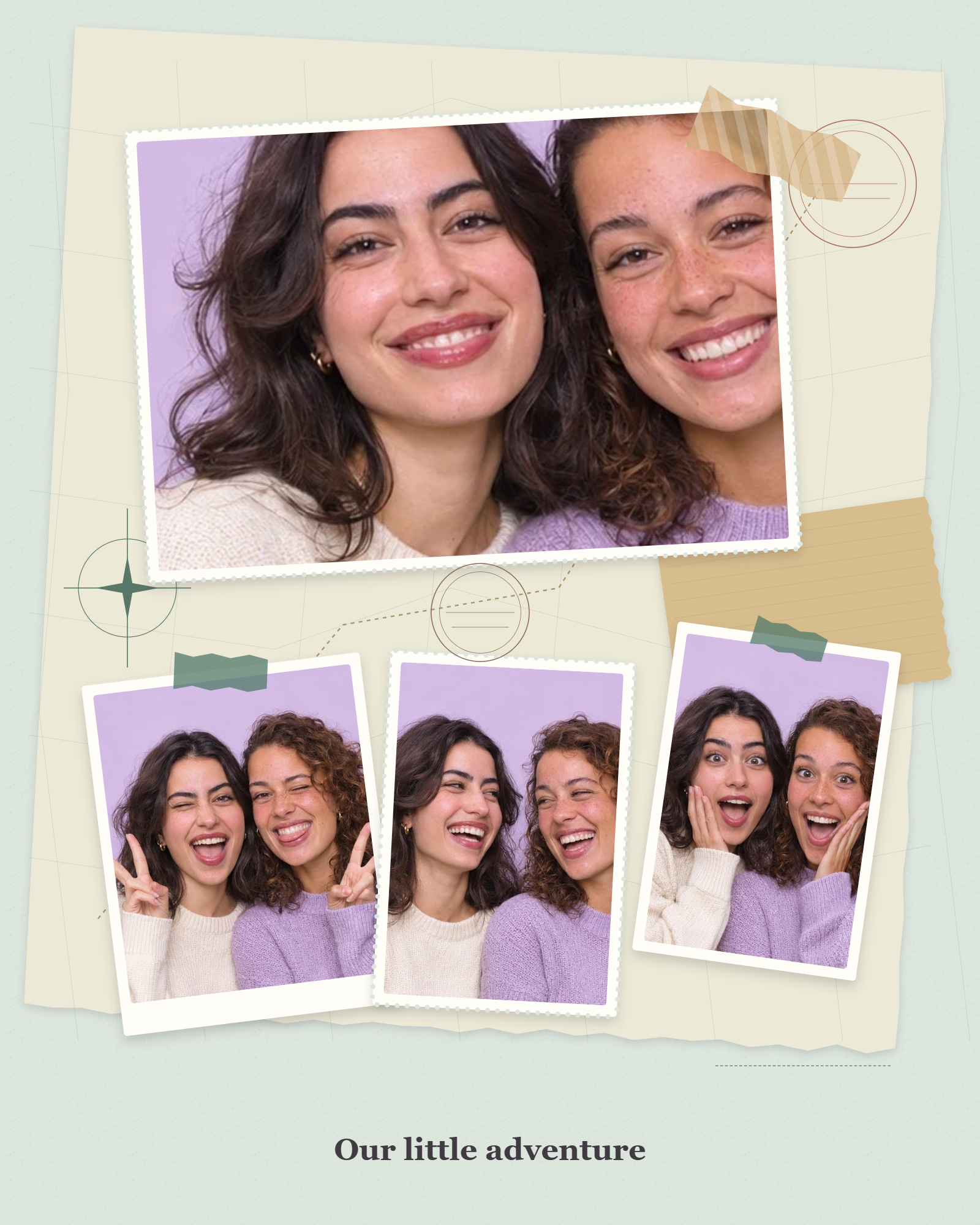
Choose Travel Journal in the template strip. It places one wide picture above three smaller ones on a paper background. Open Design and keep Portrait for the 1600 × 2000 output used here. Choose a grid template instead when equal, straight frames suit the pictures better.
Give each photo a deliberate crop
Select the first photo in Your photos. In the Photo settings, set Zoom to 135%, then drag the picture inside its large frame to adjust the crop. Watch the subject rather than the edges: leave enough room around a face or an important detail.
The frame stays in place while the photo moves inside it. Horizontal and Vertical offer the same crop adjustment through sliders. Use Move photo earlier or Move photo later to change the photo order. Rotate and Mirror change the selected picture; Reset returns it to its starting fit.
Add a short caption and finishing details
Open Decorate and replace the sample caption with “Our little adventure”. Keep the Editorial font for this example. The caption sits near the bottom by default; drag it on the canvas if you want another position, or choose Center caption to return it.
A short line leaves the photographs room to tell the story. You can add hearts, stars, flowers, sparkles, tape or dots, then adjust their size, rotation and color. These added decorations are separate movable objects; the template’s printed frame and paper details stay with its layout.
Open Design to experiment with the background, accent and paper texture. Use Undo if an experiment does not suit the photos. Changing templates keeps all photos, including those outside the current visible layout.
Download the collage and keep an editable backup
Choose PNG and select Download. The example exports one 1600 × 2000 portrait image with the photos, paper, frames and caption combined. The selection outline and editing controls are excluded. JPG is available when a compressed image is more convenient.
Use Save project to give the editable design a name and keep it in this browser. The save menu also offers Save a copy and Download project. Download project produces an .i2collage.json file containing the prepared photos and design settings.
Open can restore a browser project or a downloaded project file. Clearing site data removes browser projects, and unsaved work is not automatically restored after leaving the page. Keep the project backup when you want to change individual photos or the caption later.
Small choices that help
Pick a focal photo
Give the strongest image the largest frame, then use the smaller photos to add context. The reorder buttons let you compare arrangements without importing again.
Choose the layout before fine-tuning crops
A frame’s shape changes the visible part of a photo. Set the template and canvas format first, then zoom and position each picture.
Keep source detail in mind
Imported copies have a maximum side of 1600 pixels. A small photo or strong crop may look soft in a large frame; using a clearer source works better than enlarging it further.
Useful questions
Can I turn a grid collage into a scrapbook?
Yes. Choose a scrapbook template from the strip. Your photos, caption and added decorations stay in the project; the template applies its own frames, background and styling.
Can I save a collage without filling every frame?
Yes, once at least one visible position has a photo. Empty positions have no photo content in the download. A layout with fewer frames is often cleaner if you only have a few pictures.
Does a downloaded PNG remain editable?
It remains an image you can use elsewhere, but its individual photos and caption are flattened together. Save or download the collage project to keep those parts editable.
Are my photos sent to a server to make the collage?
No. This tool prepares the photos and renders the collage in your browser. Browser projects and downloaded project files hold your prepared photos on your device.