


Create and Personalize Animated Postcard Designs Online
Design Animated Postcard with Your Text, Photos, and Creative Elements
Find your starting point



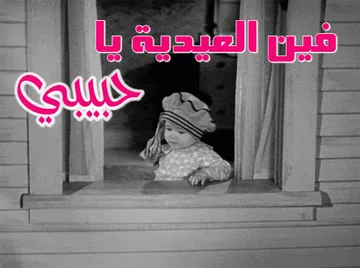


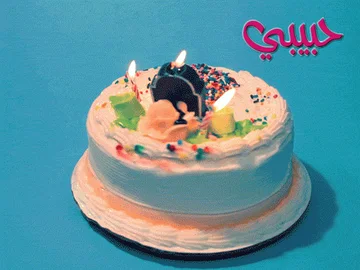

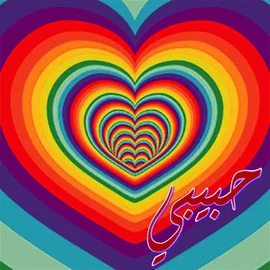
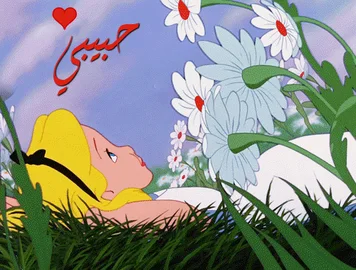

Animated postcards have evolved beyond traditional mail into a versatile way to share messages both digitally and in print. Using our online animated postcard design tool, you can create fully personalized postcards by adding text, names, quotes, and images to professionally crafted animated gif templates—or by designing your postcard entirely from scratch by uploading your own animated image. Whether you’re adding a name to a love postcard, creating a greeting for a special occasion, or building a custom image postcard, the editor gives you complete creative freedom. Upload your animated image, place text anywhere on the design, customize fonts and colors, and enrich your postcard with clipart and decorative elements. Everything works directly in your browser, with no downloads or design experience required. In just a few simple steps, you can turn your idea into a high-quality animated postcard ready to download, share online, or print.
How to Create Animated Postcard Design Online
- Choose animated postcard template or start with a blank design.
- Upload your animated gif from your device.
- Add text such as names, messages, or quotes and customize fonts and colors.
- Download your postcard design or share it digitally.
Why Create Animated Postcards with Our Online Editor?
- Create personalized animated postcard designs without graphic design skills.
- Combine photos, text, and clipart freely in one easy editor.
- Use ready-made postcard templates or design from scratch.
- Perfect for love messages, greetings, digital sharing, or printing.
- Create designs in a compatible desktop or mobile browser without installing software.
Add words to a GIF without losing its motion.
Choose an animated template or load your own GIF, edit text and artwork over its frames, then download the animation. Keep an editable project if you want to return to the same design.
 QUICK TUTORIALHow to add text to a GIF?Add your own lettering to an animated GIF. Double-click the text and enter your own letter.English narration · English captions · 22 secondsWatch tutorial
Make a template personal
Replace a name or message while keeping the design around it.
Edit the words in an existing design
The Templates panel beside the canvas shows eight designs from the current collection at a time. Use Previous and Next to browse, then select a design to open it in the same editor. Its words and artwork remain editable, and Undo restores the design you were working on.
Double-click the words in your picture to edit them in place, or select the text on the canvas and press Enter. While editing, Enter starts a new line. Choose Done or press Ctrl+Enter (Command+Enter on Mac) to finish; Escape cancels the current text edit.
Choose Text to add a selected text object with handles, then double-click it to change the words. Click any object to select it, drag it into place, and use its handles to resize or rotate it. The floating toolbar keeps Clone, Bring to front, Send to back and Delete beside your selection. Undo and Redo help you compare changes before downloading.
Give the text its own character
Choose a font, color, outline and shadow that suit the picture.
Work with fonts, alignment and Arabic text
Select text and use the Font icon in the floating toolbar for its font, size, bold and italic styles. The alignment and direction buttons sit together; expand Advanced to adjust line spacing for multiline text. Appearance has Color, Texture and Shadow tabs for text. Color groups the fill and outline controls with separate opacity sliders for each. Choosing an outline color adds a 1 px outline when its width is zero. Existing outline widths stay unchanged. Drag the object and its handles directly on the canvas to change its position, size or rotation.
Arabic and other right-to-left text stay editable. Use Automatic direction or choose Right to left explicitly, and select a font that contains the characters you need. The original Arabic template fonts are included with the design.
System fonts offers fonts installed on this device in browsers that support local font access. The browser may ask for permission. A project opened on another device needs the same system font to keep its exact appearance; a downloaded image preserves the rendered lettering.
Build with pictures and shapes
Add a photo, a heart, a frame or another detail without flattening your work.
Arrange objects on the canvas
Use Image, Shapes or Artwork in the top toolbar, then select the new object on the canvas. Use the Image icon in its floating toolbar to crop, flip or adjust a picture, and Appearance to adjust its opacity. Use Shape for a shape: a star has a Points slider, and a polygon has a Vertices slider. Appearance contains fill, outline and opacity. Drag the object or its handles to change placement, size and rotation.
Bring to front and Send to back move an object all the way through the stack. Lock an object to protect its position while arranging nearby items. If objects overlap, Alt-click to select another object at that position. Open Objects when you need to select, show, unlock or delete an item that is difficult to reach on the canvas. Each unlocked row has a Delete button, and Undo can restore a removed object.
Open Artwork to browse the built-in collections or search i2Clipart by subject or color. Artwork and texture results show eight images per page; use Previous and Next to explore the collection. Choose a texture for lettering and shapes from the pattern library, or add your own. Artwork stays editable; a texture fills the selected text or shape. Use the Settings gear beside Download to adjust the canvas size, background, grid and snapping. The canvas dimensions, zoom slider and Fit button sit below the canvas.
Keep an animated greeting moving
Add editable text and artwork over the frames of an animated GIF.
Choose an animated or still download
A GIF template keeps its original animation beneath your editable layers. You can also load your own GIF. Play or pause the preview to inspect the composition.
Choose GIF for an animated download. The exported file retains the source frame sequence, frame timing and loop setting with your design applied to the frames. PNG, JPG and WebP downloads are still images.
GIF uses a limited color palette and one-bit transparency, so soft transparent edges or photographic gradients can look different after export. Check the downloaded animation before sharing it.
Choose the right finished file
Download PNG, JPG or WebP for a static design, or GIF for an animation.
Understand what an image download keeps
PNG preserves transparent areas and crisp graphics. JPG uses an opaque background and suits many photographs. WebP can combine a compact file with transparency.
Choose the export format in Settings, then use Download in the editing toolbar. Image downloads combine the visible objects into one finished picture. Selection handles, editing controls, guides and the transparency checkerboard do not appear in the output. Keep a project copy if you want to edit individual words or objects later.
Return to your own designs
Save projects in this browser and keep a separate editable backup.
Save, reopen and back up a project
New, Open and Save sit together in the editing toolbar, with Undo and Redo in the upper toolbar. Choose Save, enter or update the project name, then save the editable design in this browser. Choose Open to see saved designs with previews, dates, download and delete actions. An account is not required.
Open the triangle beside Save. Choose Save a copy to keep a separate browser project without replacing the original, or Download project for an editable .i2symbol.json backup containing the scene and its image resources. Choose Open, then Open project file, or drop the backup into that dialog to continue later. The separate Download button exports a finished PNG, JPG, WebP or GIF.
The star on a template saves a shortcut to that public design. It does not save your edits; use Save for your own work.
Files and browser processing
Open JPG, PNG, WebP and GIF images, or an i2Symbol project backup. Large still images are reduced to a working copy for responsive editing. Still-image canvases support up to 4,096 pixels per side; animated exports use a smaller limit to keep frame processing manageable. The editor reports unsupported sizes before export.
FAQ
Good to know.
A few answers before you make it your own.
On your deviceHow do I put my name on a postcard?
Choose a postcard to open it in the editor. Double-click the text you want to replace, type your name, and choose Done. Check the font and position, then download the finished picture.
Can I edit Arabic comics and quotes?
Yes. The text stays editable, and the editor includes the original template fonts. Double-click to edit the words directly on the canvas. Select text and use Font to change its size, alignment or direction, and Appearance to change its color.
How do I select an object behind another object?
Alt-click the overlapping area to cycle through the objects there. You can also open Objects to select an item, show a hidden object or unlock a protected one.
Can I change the number of points in a shape?
Yes. Select a star or polygon, then choose Shape in the floating toolbar. Adjust Points for a star or Vertices for a polygon. The shape updates while you move the slider, and you can change its fill, outline and size.
Will adding text remove the GIF animation?
No. Choose GIF when downloading an animated design to retain the source animation with your text and artwork applied. PNG, JPG and WebP are still-image exports.
Do I need an account to save a design?
No. Save stores an editable copy in this browser. Download project creates a separate JSON backup that you can reopen later.
What happens if I clear my browser data?
Clearing this site's stored data can remove browser-saved projects and favorites. Keep an editable copy with Download project before clearing site data or changing devices.
Are my pictures uploaded for editing?
This editor processes your pictures, project files and downloads in your browser. It loads public template images and fonts from the website. When you use i2Clipart search, your search is sent to i2Clipart to retrieve artwork. Saving a project does not publish it or send it to an account.