Enter a short word
Open Emoji Text Art and type a name or greeting. The tool accepts up to 64 characters across four lines, but a short word gives each letter more room.
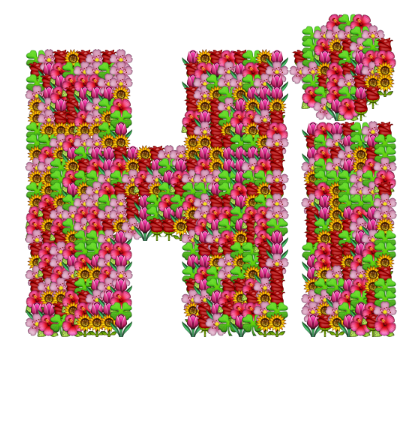
Try Hi for the first design. A bold, open letter shape is easier to fill than a thin script with closely spaced strokes.
Choose an emoji brush
Use a predefined themed brush or open the Emoji brush dropdown to choose one emoji. Search the picker or narrow the category, then select the artwork you want to repeat.
A flower brush suits a greeting; a single repeated emoji creates a more consistent texture. A themed brush can mix several related images.
Balance size and density
Choose the font and text size, then adjust emoji size and density. Larger emoji are easier to identify individually, while smaller stamps can describe the letters more precisely.
Generate the art and inspect both the whole word and the individual pictures. If a letter becomes crowded or develops gaps, adjust the settings and generate again.
Choose a background and export
Use PNG when the design needs a transparent background, or JPG when you want a solid-background image. Review the output dimensions beside the preview before downloading.
The exported image keeps the rendered emoji artwork. It is a picture of the word, so it cannot be pasted into a text-only field as editable emoji lettering.
Small choices that help
Read it from a distance
If the word is unclear at normal display size, simplify the brush or use a heavier font.
Give the letters breathing room
A short word and a slightly larger canvas can keep the emoji from merging into an indistinct texture.
Useful questions
Can I copy this as ordinary text?
The generated result is an image. Use the emoji picker or ASCII Art Generator when you need copyable text instead.
Does choosing an emoji need a new page?
The dropdown changes the active brush in the editor. Existing template URLs remain available as starting points.
Which format keeps transparency?
PNG supports a transparent background. JPG requires a solid background.