Choose the effect
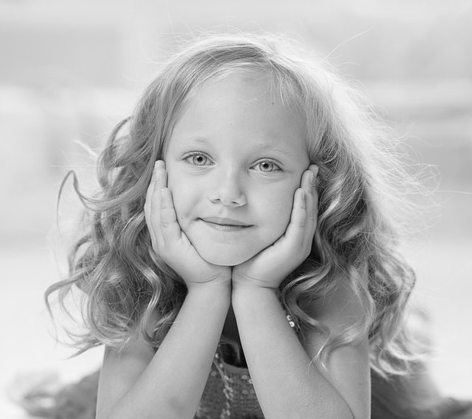
Open Photo Effects and inspect the named previews. Choose Grayscale for a simple color-to-monochrome example, or another treatment that matches the purpose of the picture.
Different effects change tone, detail or geometry. A distortion effect such as Sin has a very different purpose from a tonal adjustment.
Load your photo
Open the selected effect and replace the sample with a PNG, JPG or WebP from your device. Check that the subject is visible before changing the controls.
The editor processes the chosen photo in the browser. Large accepted images are reduced to a working size, so keep the original file if you may need its full resolution later.
Refine and compare
Adjust Effect strength to blend the treatment with the source. Light & color provides Brightness, Contrast and Saturation controls for further adjustments.
Use Compare with original to judge the change. Undo and Redo help compare an adjustment without loading the file again.
Choose the output format
Select PNG, JPG or WebP and Download image. Copy image is also available when supported by the browser.
Open the exported file and inspect detail in faces, lettering and the background. An effect cannot recover detail that was absent from the source photograph.
Small choices that help
Make one change at a time
Start with the effect strength, then adjust tone only if the picture needs it.
Keep the original photograph
A filtered export is a new creative result; the original remains the best source for another edit.
Useful questions
Is my photo sent to a server for this effect?
The current effect editing and export run in the browser. The page still loads its public templates and ordinary website assets.
Why is the download larger than the visible preview?
The responsive preview can be smaller than the export. Downloads use the available working photo or template resolution within the editor limits.
Can I undo an adjustment?
Yes. Use Undo and Redo during the editing session, then download the result you want to keep.