
Choose the Sweet heart template
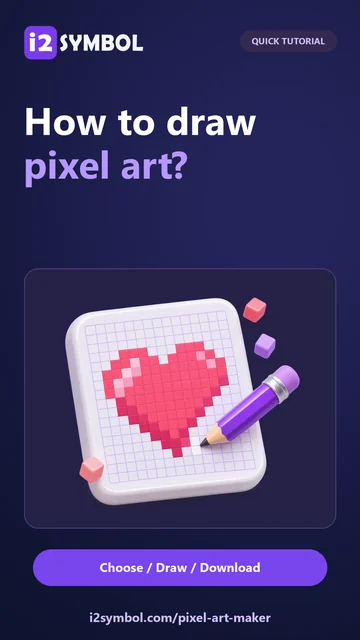
Open Pixel Art Maker and select Sweet heart in the template strip. The template uses a 32 × 32 canvas with a transparent background layer and a separate heart layer. Select the heart layer to change the existing pixels, or add a new layer when you want to keep an extra detail independent.
Use Fit to see the entire design. Zoom in when a small repair is difficult to select, and leave Grid enabled while drawing if the cell boundaries help. Zoom and the drawing grid affect only the working view.
Add details on a separate layer
Select the heart layer, choose a lavender color such as #B69AF8, and use Fill on the large pink area. Then choose Add layer and name it Highlights. Select a pale color such as #FFF0A8, keep Brush at 1 px, and use Pencil to place a few marks on the upper-left part of the heart. Separate highlights can be hidden, erased or softened without changing the heart underneath.
Try Mirror left and right for a symmetrical design, or leave mirroring off for an off-center shine. Fill works on connected matching pixels in the selected layer. Rectangle and Ellipse offer outlines or filled shapes; Line draws a straight path between your starting and ending cells. Undo returns to the previous drawing state.
Review the silhouette and choose an export size
Return to Fit and hide Grid to judge the result at a glance. Check that the heart still reads clearly at a small size. The checkerboard shows empty areas; it is not part of the image. Hide any layer you do not want in the finished artwork.
Choose PNG and 16× in the download scale selector. With a 32 × 32 canvas, that produces 512 × 512 pixels. A larger download scale enlarges each original square. To add more editable cells instead, use Canvas size & transforms and change the canvas dimensions.
Download the image and keep the editable version
Select Download to save the transparent PNG. The output contains the visible combined artwork, with no grid or checkerboard. SVG is another option: it stores the visible pixels as colored rectangles and preserves the blocky design when resized.
Use Save to keep an editable browser project. The save menu offers Save a copy for another version and Download project for an .i2pixel.json backup. Open restores a saved browser project or an imported project file, including layers. Clearing this site’s browser data removes browser projects, so keep the project file when you want a durable editable copy.
Small choices that help
A clear silhouette beats extra detail
A face or icon often works better with a few deliberate colors and a readable outline. Check the full design after making close-up edits.
Import simple artwork
An imported image is fitted into the current small grid. A clean illustration usually needs less repair than a detailed photograph. Import replaces the drawing with one editable layer.
Useful questions
Why use layers for a small image?
Layers let you adjust highlights, a silhouette or a background independently. Image exports combine visible layers; project files preserve them.
How do I keep a transparent background?
Leave the background empty, erase unwanted pixels, or hide a filled background layer. PNG retains the transparent areas; the checkerboard is never exported.
Does a larger PNG create more detailed pixel art?
No. Download scale makes each existing pixel square larger. Increase the editable canvas dimensions when you need more cells for detail.
Can I make a sprite sheet or animation here?
This editor creates one still pixel-art canvas with up to eight layers. It does not provide animation frames or sprite-sheet playback.