Start with a motif and a coordinated palette
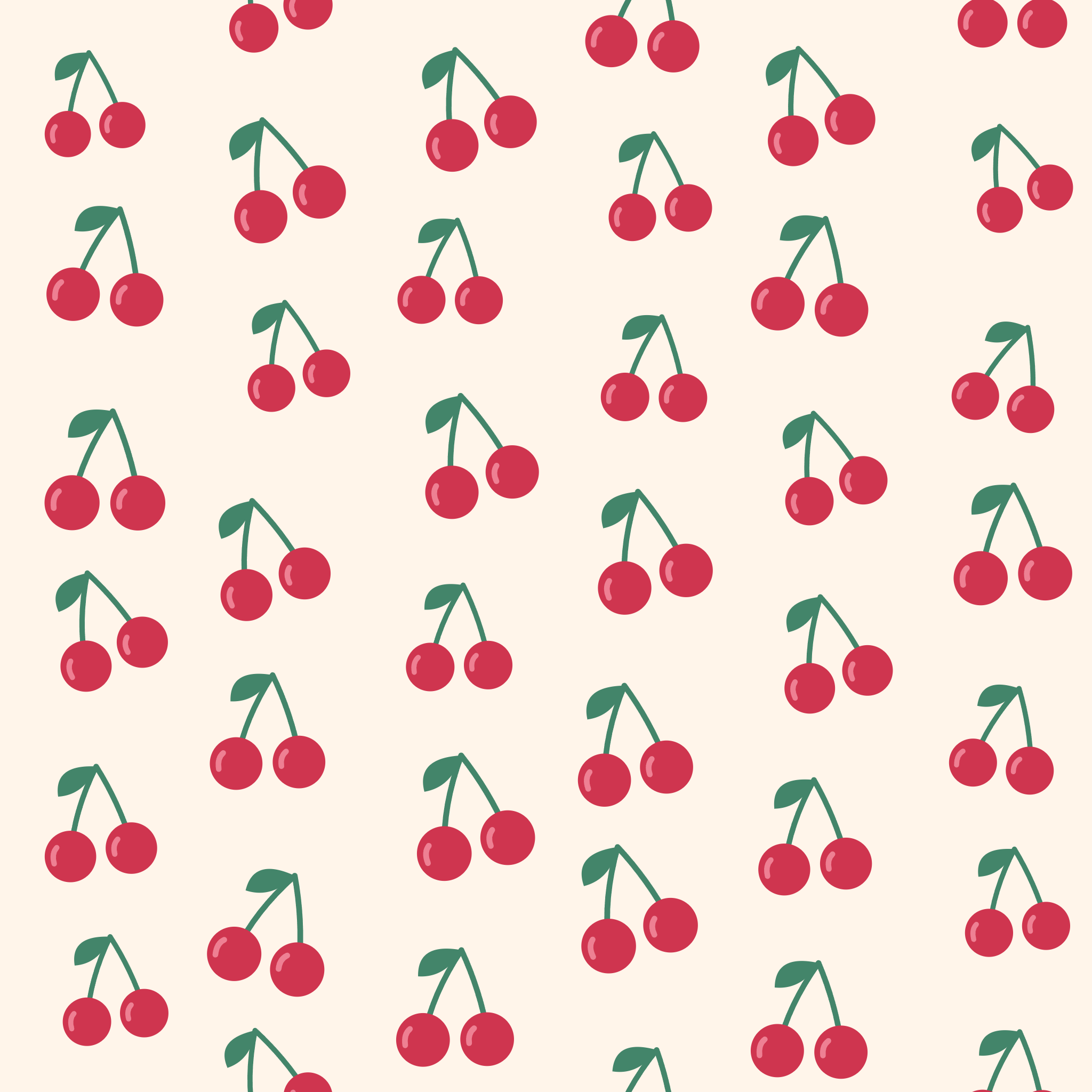
Choose Cherry club from the template strip. This provides a cherry motif, cream background and coordinated red and green colors. The other templates offer flowers, sparkles, hearts, leaves, bows, lemons and confetti. A template is a starting combination; the controls remain editable.
To use your own drawing, choose Use your image and upload a PNG, JPG or still WebP. A transparent PNG is particularly useful because the surrounding pattern background can show through. The tool repeats the full image and does not remove an existing background. Uploaded images keep their original colors.
Adjust the arrangement and the space between motifs
Choose Half-drop and set Density to 6. Keep Motif size at 73%, Rotation at −12° and Playfulness at 18% for this example. Half-drop offsets alternating columns; Brick offsets alternating rows; Straight gives a regular row-and-column layout.
Density changes the number of rows and columns in the complete tile. Motif size controls the proportion of each cell occupied by its motif. Lowering size leaves more background visible; changing density also changes the apparent scale of the repeat. These controls work together, so inspect the full pattern after each adjustment.
Playfulness adds small differences in position, size and rotation. Remix changes those variations while retaining the selected motif and colors. Use Undo if the previous arrangement felt better. A saved project keeps the variation seed so the same settings reproduce the same pattern.
Inspect the tile and the continuous repeat
Use Repeat to see a 3 × 3 arrangement of the tile. Look for overly dense clusters, large empty areas or a distracting rhythm. The generator wraps shapes across the tile edges so a motif leaving one side continues at the opposite side.
Switch to Tile to inspect the complete square on its own. A motif cut by an edge is expected: the matching part appears on the neighboring copy when the tile repeats. The preview and Export area stay synchronized, so Download and Copy image use the arrangement currently shown.
Try another palette or adjust the background and motif colors. Transparent background clears the space around the motifs for PNG and SVG. The checkerboard is a preview aid, not part of the exported artwork. Built-in motifs may include fixed white highlights in addition to the three editable colors.
Export the full tile and save the editable pattern
Under the preview, select Seamless tile and an image size of 2048 × 2048. Choose PNG in the toolbar and select Download. The example produces one full matching-edge square. Repeat that square without cropping it or adding a border to continue the pattern elsewhere.
Repeating wallpaper instead exports a square containing a 3 × 3 arrangement. You can choose 1024, 2048 or 4096 pixels per side for either export area. SVG keeps built-in motifs as vector shapes; a custom image is embedded as raster data inside the SVG and cannot gain detail merely by being enlarged.
Save project keeps an editable version in this browser. Save a copy creates another entry; Download project creates a portable .i2pattern.json backup. Use Open project file to restore it. Browser projects can disappear when site data is cleared, so a downloaded project is the safer way to keep a design you want to revisit.
Small choices that help
Give the motif some breathing room
A smaller motif size can make the repeat calmer without changing the number of cells. Try that before adding more empty space by lowering density.
Check more than one scale
Tile reveals the complete repeat unit, while Repeat makes the overall rhythm easier to judge. An attractive single tile can still feel too busy when repeated.
Use the entire exported square
Do not trim the edges or add a border before repeating the tile. Apply the same scale to every copy so the matching edges remain aligned.
Useful questions
Why is a motif cut off at the edge of my tile?
That is part of the seamless repeat. The missing portion continues on the opposite edge. Repeat the complete tile to see the motif connect across neighboring copies.
Can I turn my own image into a pattern?
Yes. Use a PNG, JPG or still WebP image. Transparent PNGs work well for isolated drawings or logos. The tool keeps the image colors and does not remove its background.
Should I download the tile or the wallpaper?
Choose Seamless tile when another application will repeat the image. Choose Repeating wallpaper when you want one finished square containing a 3 × 3 arrangement.
Can I export a transparent pattern?
Yes. Enable Transparent background and download PNG or SVG. An opaque background already inside a custom image remains part of that image.
Is SVG always vector?
Built-in motifs are vector shapes in the SVG export. An uploaded PNG, JPG or WebP is embedded as raster image data, so its original resolution still limits its detail.
Does the tool upload my image for processing?
No. This pattern tool prepares the motif, generates the repeat and exports the image in your browser. Browser projects are stored on this device when you choose Save.