Choose a comic with editable captions
Open Comic Maker or browse the comic templates. Select a design whose layout suits the exchange or reaction you want to write.
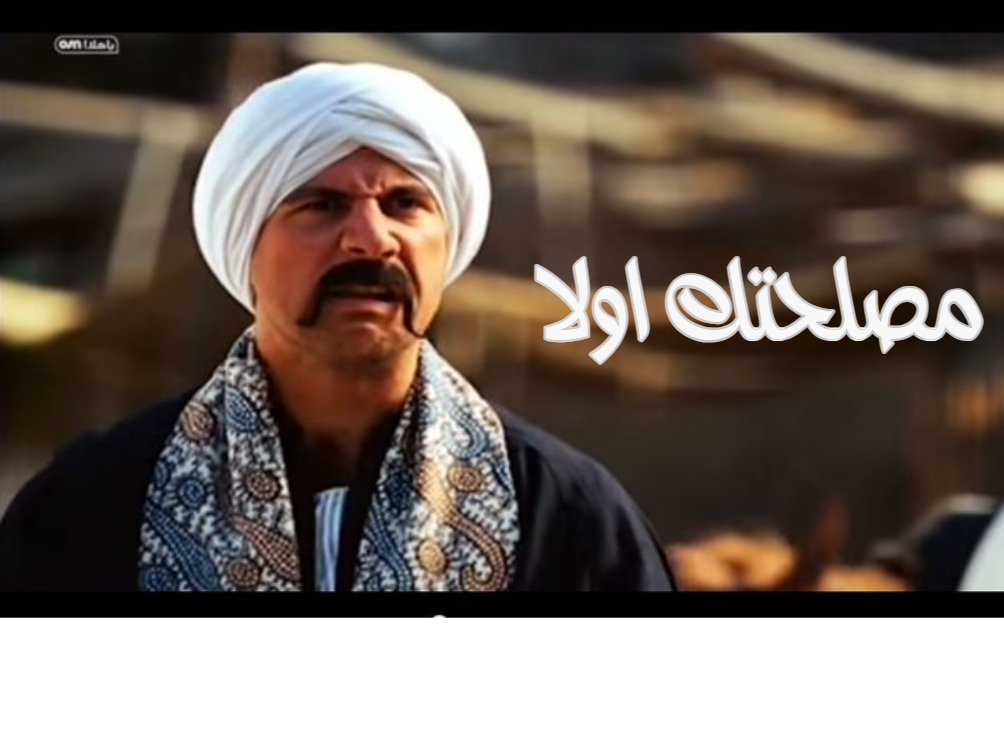
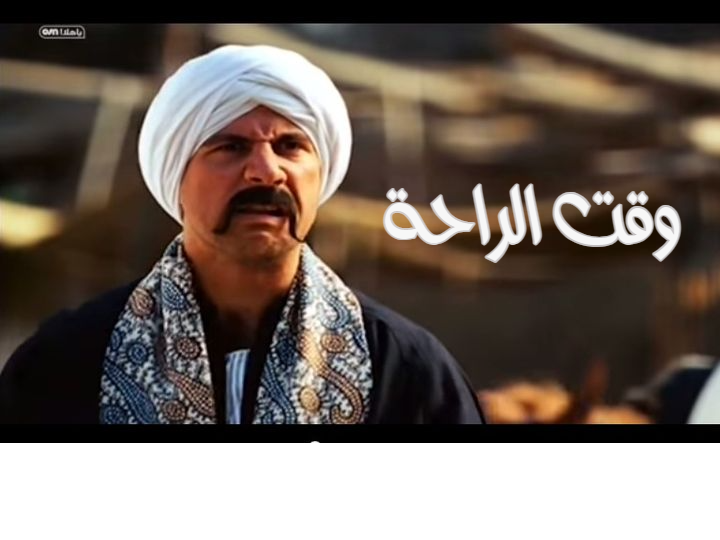
Inspect the whole scene before editing. A caption can be part of the image artwork or a separate editable text object; select the object to see what can be changed directly.
Replace one caption at a time
Double-click the text you want to change, enter the new words and choose Done. If another object covers the caption, use Objects or Alt-click to reach it.
Work through the exchange in reading order. Changing one caption without reviewing the reply can make a familiar scene confusing.
Match direction, size and position
Use Font to select the appropriate typeface, direction and alignment. For Arabic text, review connected lettering, punctuation and any Latin names in the same sentence.
Move or resize the caption with the canvas handles. Keep it within the intended area and avoid covering an expression or visual detail that explains the joke.
Review and export the comic
Read the complete comic at normal size, then choose PNG, JPG or WebP in Settings and Download. Check the downloaded image before sharing it.
Save an editable project or project file when you want to revise the dialogue later. The exported image combines the visible objects into one picture.
Small choices that help
Edit the existing words
Replacing a caption avoids leaving duplicate text beneath a new object.
Read the whole exchange
A good individual sentence can still be confusing when it does not fit the other captions or the picture.
Useful questions
Can every word in a comic image be edited?
Only separate text objects can be edited as text. Words baked into a source image are part of its pixels.
How do I reach a covered caption?
Use Objects to select it, or Alt-click the overlapping area to cycle through objects.
Can I change Arabic text direction?
Yes. Font provides automatic, left-to-right and right-to-left direction choices, along with alignment controls.