Choose the screen format first
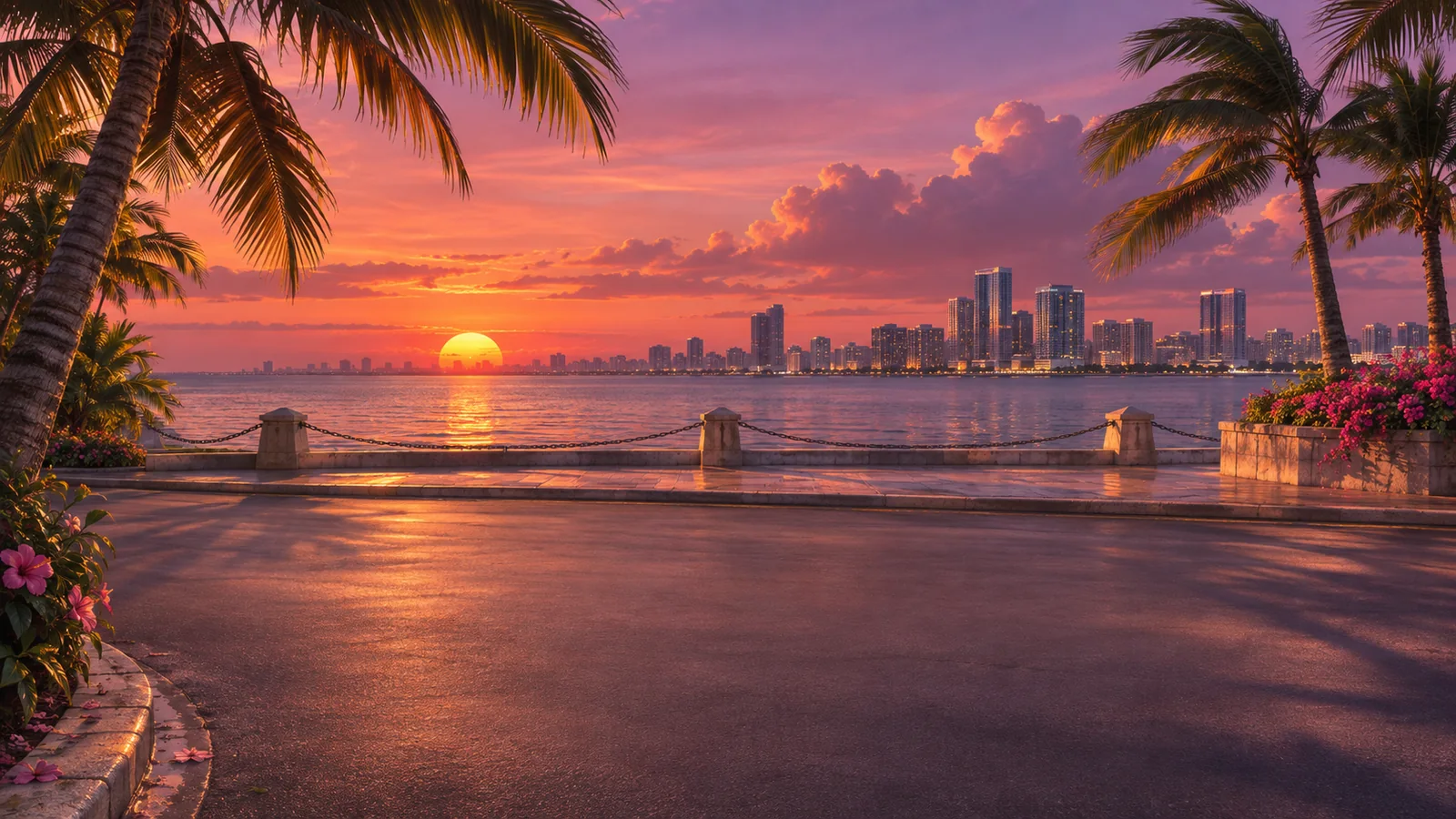
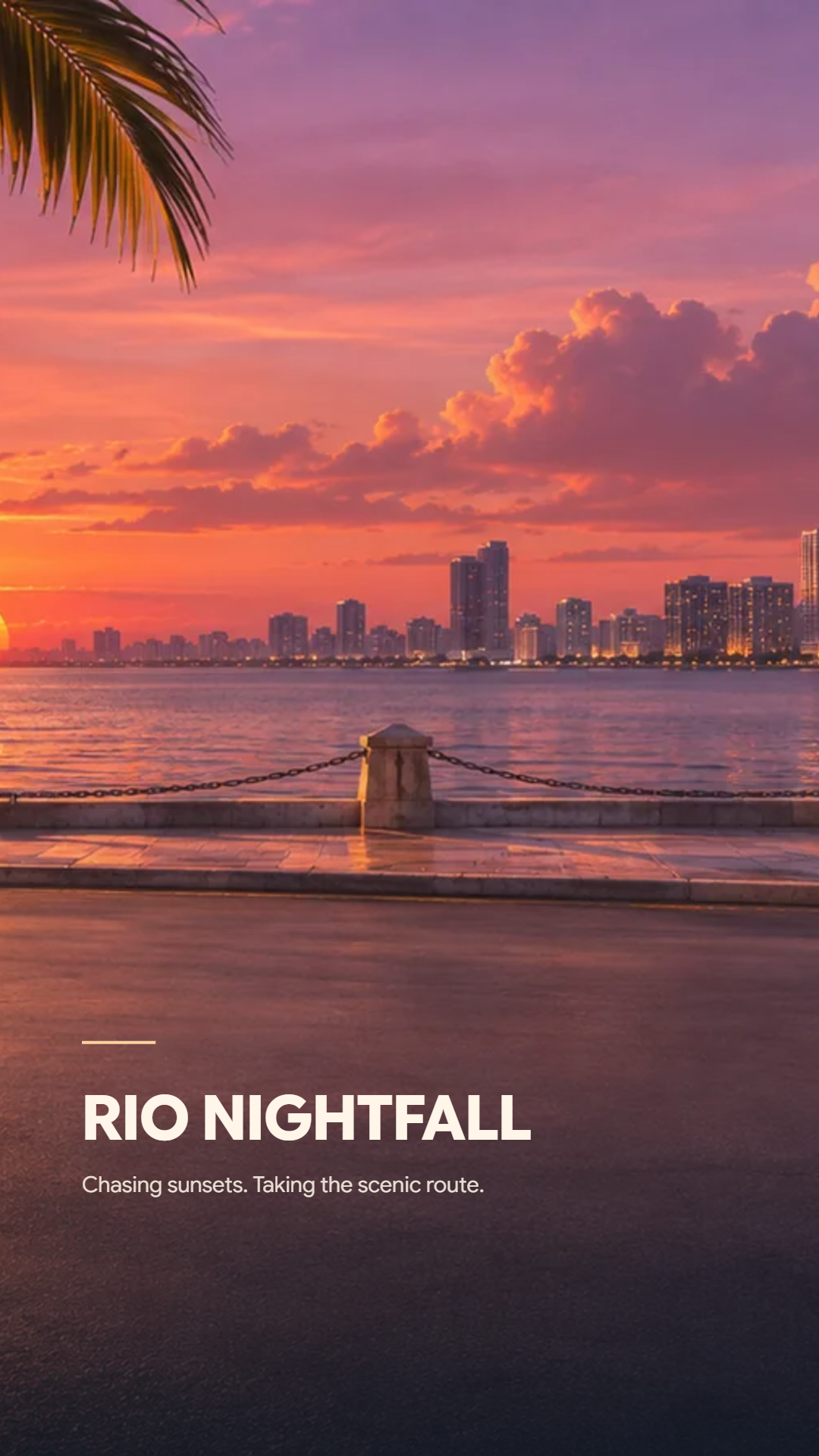
Open the Wallpapers workspace and choose Phone or Desktop. Phone exports are 1080 × 1920 pixels; desktop exports are 2560 × 1440. A tall phone crop shows a much smaller horizontal portion of a wide scene.
The preview guides indicate room for a phone clock or desktop icons. They are editing aids and are not included in the downloaded image. Use them as a starting point because each device can position its clock, widgets and icons differently.
Frame the background for that screen
Select a stock scene or add your own background, then adjust zoom and horizontal and vertical position. Move the focal point into the visible area without putting the most interesting detail behind the clock or a busy group of desktop icons.
Phone and desktop crops are remembered separately, so refine each format instead of forcing one crop to serve both. Dimming can make overlays easier to read, but a wallpaper without text often benefits from keeping more of the original scene’s brightness.
Add identity only when it improves the wallpaper
Turn on Show name and bio if you want a personal signature. Turn on the photo, logo or initials option separately when you want a portrait or crew mark. Leaving both off produces a background-only wallpaper.
With an overlay enabled, compare Signature, Glass Card and Centered Crest. These are the three wallpaper compositions; the profile workspace’s design collection is separate. Check the text length and image placement after changing a layout, and keep a quiet area for the screen interface.
Download and inspect it on the device
Download the selected wallpaper as PNG. Switch formats and download again if you want both phone and desktop images. The profile workspace’s full-kit ZIP still contains its avatar, banner and title card rather than the wallpapers.
Set the image as a wallpaper and inspect the device’s own crop preview before confirming it. A device may zoom or shift the image further. Return to the editor to adjust the crop if the clock, widgets or icons cover an important part of the scene.
Small choices that help
Begin with the clean background
Keep both overlays off while finding the crop. Add a name or emblem only after the scene works as a wallpaper.
Use a source with enough detail
Export dimensions describe the PNG size, not new detail in the source image. A small uploaded picture can look soft when enlarged.
Useful questions
Can I make a wallpaper without any text or logo?
Yes. Leave the name-and-bio and photo/logo/initials options off for a background-only image.
Will the clock guide appear in the downloaded PNG?
No. The guides are preview-only. Your device supplies its own clock, widgets and icons.
Does the desktop size mean every source image is native 4K?
No. The desktop PNG is 2560 × 1440 pixels. The source background may be scaled to fill that output, so its original detail still matters.