

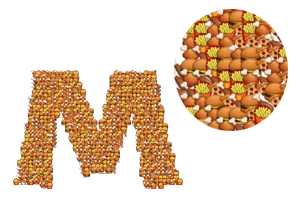
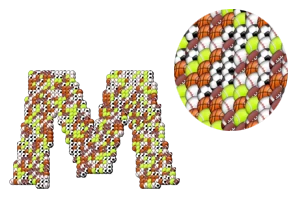
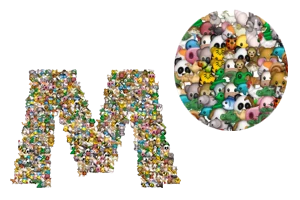
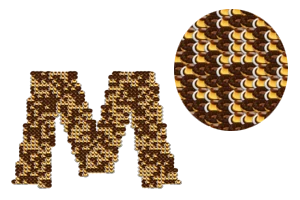
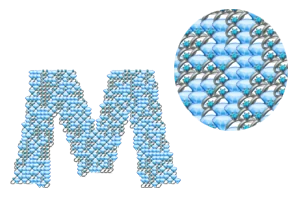
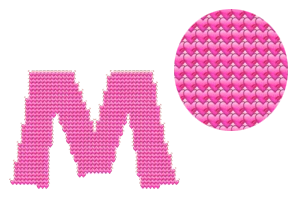
How to create emoji text art using Battery
Enter a name or short message. Use up to 64 characters across 4 lines.
Choose a themed brush, or open the Emoji brush dropdown and search for the emoji you want.
Adjust the font, text size, emoji size and density. Choose the background and image format.
Generate your emoji art, inspect the preview, then download the image to use in your design.
Create emoji text art with Battery
This template starts with the Battery emoji. Enter a name or short message to arrange this emoji into letter shapes, then adjust the font, size and density before downloading your image.
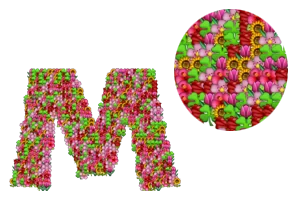
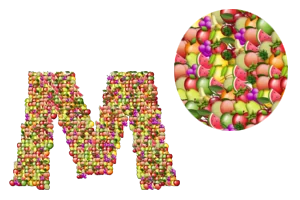
Change the font, text size, emoji size and density to find the balance you like. Flowers, fruit, food, sports and other ready-made brushes combine several emojis in one design. A transparent PNG can sit over another image; JPG is useful when you want a solid background.
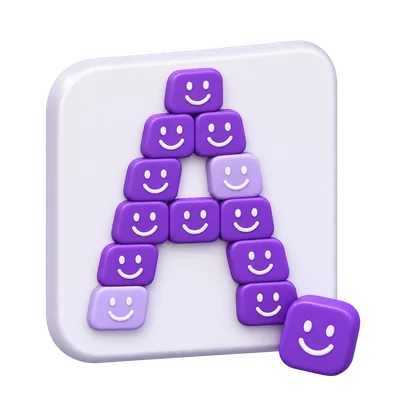
 QUICK TUTORIALHow to make emoji text art?Build big letters from tiny emoji images. Choose Flowers, then click Generate emoji art.English narration · English captions · 17 secondsWatch tutorial
Why use emoji text art?
Give a name some personality
Create decorative names and short titles from hearts, flowers, faces or another favorite emoji.
Build a themed graphic
Choose a mixed brush for a greeting, celebration, profile graphic or creative project.
Keep the same appearance
Download an image that keeps the generated emoji artwork and letter shapes when you share it.
Start with a name or a short message
Type your text directly and arrange it across several lines. The preview turns the words into an image, rather than a string of copyable emoji characters.
Entering and arranging text
Keep your message readable
Short names and bold letters are good starting points. You can enter up to 64 Unicode characters across 4 lines. Spaces, punctuation and line breaks count toward the text limit.
Press Enter to generate the image. Use Shift + Enter for a new line. On a touch keyboard, use the Generate emoji art button after entering your text.
Names in different scripts
The text field follows the direction of what you type. Choose Arabic for Arabic lettering, or try Unicode for text that needs a wider range of glyphs. Letter support depends on the selected font and the fonts available on your device.
Use one emoji or a themed brush
Choose from the original emoji collection or start with a ready-made theme. A single brush repeats one emoji; a themed brush combines several.
Choosing a brush or template
Themed brushes
Flowers, Bouquet, Fruits, Food, Sports, Animals, Sweets and Diamonds are available in the Style menu. The gallery shows examples of these brushes, with Hearts as another starting point. Select a card to apply its brush to your text.
Choose a single emoji
Open the Emoji brush dropdown above the preview to browse the collection. Search by name or choose a category to find a face, flower, heart or other image, then select it to use that emoji throughout the letters. The dropdown closes after your selection and the current brush updates in the toolbar.
Links to individual emoji pages load the corresponding brush. You can still change the text and all the other settings on those pages.
Choose the shape of your letters
Five font choices offer different starting points: Arabic, Thin, Fun, Outline and Unicode. Text size changes the scale of the letter shapes.
Font styles and text size
Choose a font style
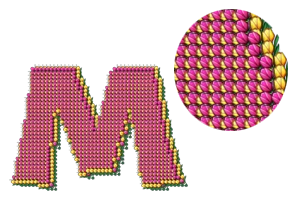
Fun uses heavier letter shapes with more room for emoji detail. Thin offers a lighter typeface. Outline places emojis along the edges of the letter shapes. Arabic uses an Arabic-capable font, while Unicode uses fonts available on your device for broader character coverage.
A smaller emoji size or denser pattern can help fine strokes and small spaces remain recognizable. The result may differ between fonts because their letter widths and shapes are different.
Change text size
Text size changes the size of the letter mask used to place emojis. Use Small, Medium or Large and check the resulting image dimensions beside the preview. Longer text creates a wider image; adding line breaks can make the composition more compact.
Balance detail, size and density
Emoji size controls the size of each image in the pattern. Density controls how closely those images are placed together.
How size and density work together
Emoji size
Small emojis show more of the letter shape and its interior spaces. Larger emojis make individual faces or objects easier to recognize, but can overlap more and soften the shape of small letters.
Pattern density
Sparse leaves more space between placement points. Balanced is a middle setting. Dense places emojis closer together for a fuller letter shape. Density and emoji size are separate controls: a large emoji with dense placement produces more overlap.
If a word is difficult to read, try a heavier font, smaller emojis or a different density. Inspect the full result before downloading.
Download a PNG or JPG image
Keep a transparent background with PNG, or use a white or black background for a finished graphic. The download keeps the image shown in the preview.
Backgrounds and download formats
Transparent, white or black
Transparent leaves the space around your emoji letters clear. The checkerboard in the preview helps you see that empty space; it is not added to the exported PNG. White and Black fill the image behind the emoji pattern.
Choose the right format
PNG supports transparency and is useful for adding the result to another graphic. JPG uses a solid background and does not preserve transparency; a transparent selection is flattened onto white for JPG.
Use Download image to save the rendered result. This is an image file, so its emojis and letters keep their appearance without depending on the recipient's emoji font.
Create directly in your browser
Your browser builds the letter shapes, places the emoji images and prepares the download. No image upload or account is required.
Processing and useful limitations
Local image generation
The tool loads its public emoji artwork and fonts, then creates your text image on your device. Generating the artwork does not upload the text for server-side rendering. The generation time depends on the text, settings and your device.
Before you leave
After a successful generation, the tool remembers your text and settings in this browser for up to 12 hours when browser storage is available. Opening a specific emoji or style link selects that brush, and settings supplied by the link take precedence.
Download a result you want to keep. An exported PNG or JPG is a finished picture, not an editable project file. To change its words or brush later, return to the generator and create another image.
Very large compositions are bounded to keep the browser responsive. If the tool asks you to shorten a message or reduce a setting, make that change and generate again.
Input, output and processing
Input: up to 64 Unicode characters and 4 lines, with a single emoji or a themed brush. Output: PNG or JPG. Choose a transparent, white or black background; only PNG retains transparency.
Rendering and export happen in the browser using the public i2Symbol emoji collection and the selected font. The last generated text and settings can be remembered locally for up to 12 hours. No software installation, image upload or account is needed to create your design.
Good to know.
A few answers before you get started.
On your deviceCan I copy and paste this as emoji text?
The result is an image of letters made from emojis. Download it as PNG or JPG and upload it where images are accepted. It is not a block of emoji characters for a text-only field.
How can I make the letters easier to read?
Start with a short word and a heavier font such as Fun. Try smaller emojis and adjust Density until the letter edges and spaces are clear. Text size, emoji size and density each affect the result.
Can the downloaded image have a transparent background?
Yes. Choose Transparent for Background and PNG for Format. The checkerboard is only a preview aid. JPG cannot retain transparency, so a transparent selection is exported on white.